Connecting to NVIDIA Jetson GUI using NoMachine
Introduction
- In this tutorial, we'll walk you through the process of installing NoMachine remote desktop software on your NVIDIA Jetson device and connecting to it from another computer.
- NoMachine provides a fast, high-quality remote desktop experience that's particularly well-suited for working with Jetson devices remotely.
Main Goal
- The main goal of this guide is to help you set up NoMachine on your NVIDIA Jetson device, enabling you to access and control your Jetson remotely from another computer.
- By the end, you'll have a fully functional remote desktop connection that allows you to work with your Jetson as if you were sitting right in front of it.
What You Will Need
Before we begin the installation, here's what you'll need:
-
NVIDIA Jetson Carrier board
Aerium Lumen or Aerium Helios -
NVIDIA Jetson Module
Any NVIDIA Jetson board (Nano, Xavier NX, Orin Nano or Orin NX) with JetPack installed and running -
Network Connection
Both your Jetson device and the client computer must be connected to the same network (wired or wireless) It is recommended to use the USB otg for the initial connection. -
Client Computer
A Windows, Mac, or Linux computer from which you'll connect to the Jetson -
Internet Connection
Required for downloading NoMachine software on both devices
How to Set It Up
Install NoMachine on Your NVIDIA Jetson
-
Connect client computer to the NVIDIA jetson using USB cable wired to the USB0 port on the carrier board (USB OTG)
-
Open a terminal on your Jetson device via SSH (replace username with your actual user name)
ssh username@192.168.55.1
- Disable the xserver using:
sudo systemctl disable gdm3 --now
- Download the NoMachine ARM package for Jetson. Visit the NoMachine downloads page or use wget:
cd ~/
wget -O nomachine.deb "https://www.nomachine.com/free/arm/v8/deb"
- Install the downloaded package using dpkg:
sudo dpkg -i nomachine.deb
- Verify the installation by checking if the NoMachine service is running:
sudo systemctl status nxserver
- NoMachine should start automatically after installation. If needed, you can manually start it:
sudo /etc/NX/nxserver --start
Install NoMachine on Your Client Computer
- On your client computer (Windows, Mac, or Linux), download NoMachine from the official website: https://www.nomachine.com/download
- Install the appropriate version for your operating system following the standard installation process
- Launch the NoMachine application once installation is complete
Connect to Your Jetson
-
Open NoMachine on your client computer
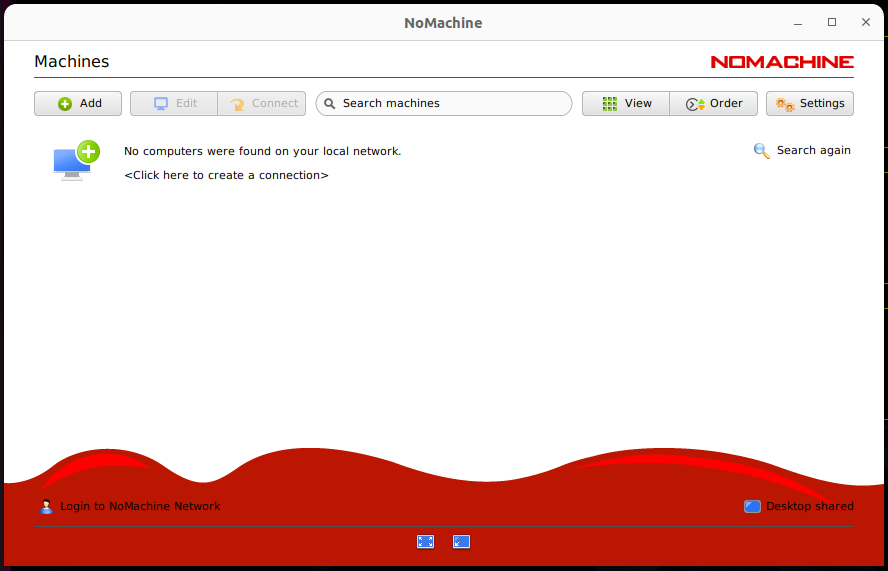
-
Wait for the automatic search to finish, the Jeston may be automatically detected.
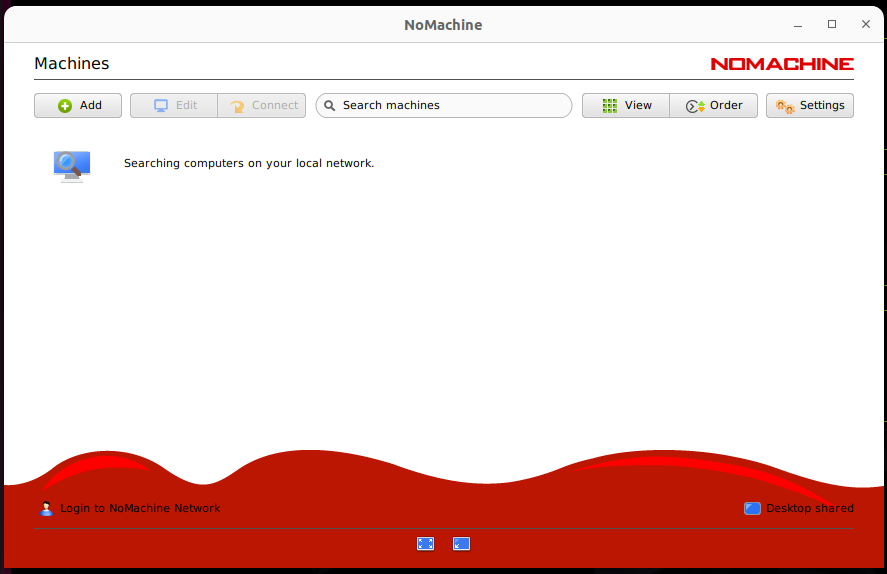
-
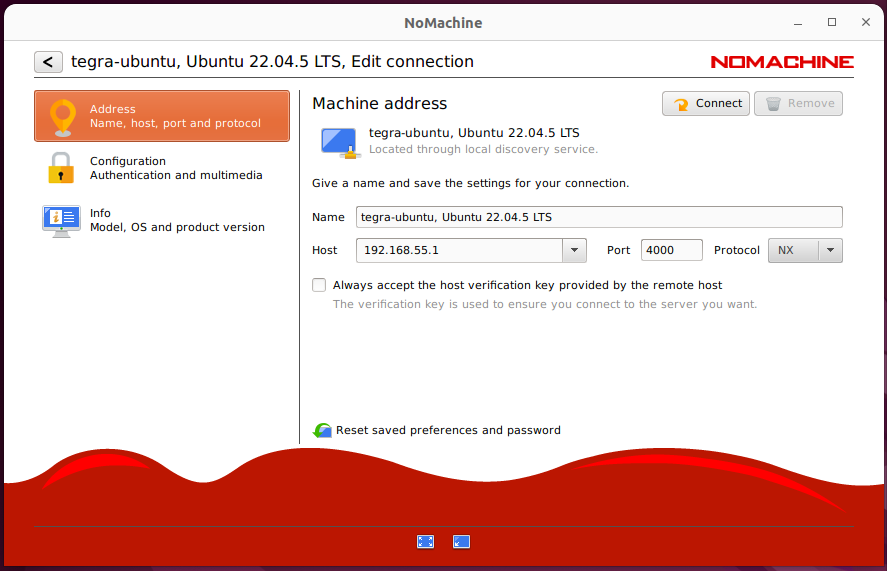
If nothing is detected, click on "New connection"
- Enter the IP address of your Jetson (if using USB OTG use: 192.168.55.1)
- Keep the default port (4000)
- Choose the NX protocol
- Click "Connect"
-
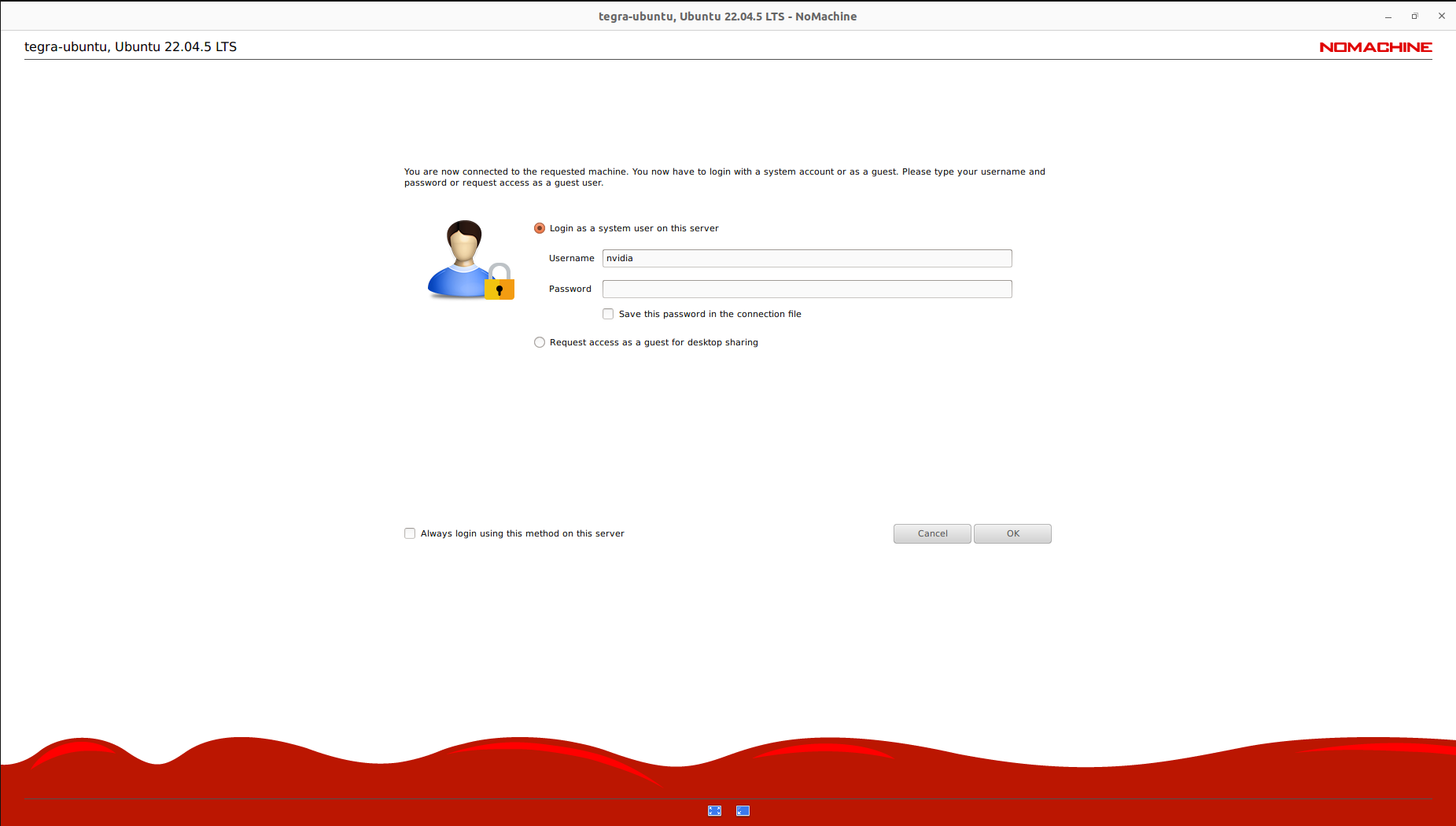
When prompted, enter your Jetson's username and password (the same credentials you use to log in locally)
-
Select the desktop environment you want to use (typically the default Ubuntu desktop)
-
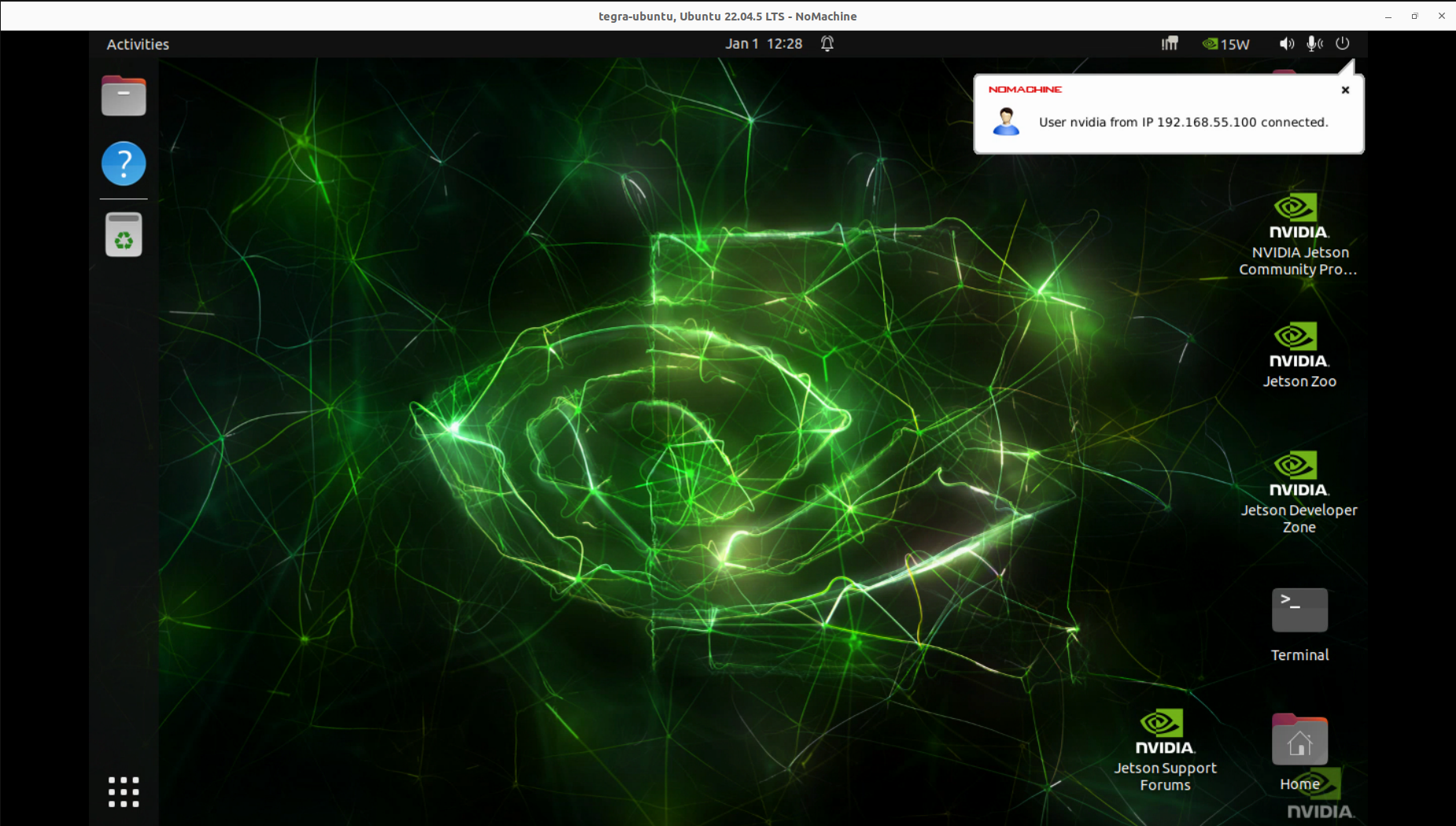
You should now see your Jetson's desktop displayed in the NoMachine window
Troubleshooting Tips
If you cannot see your Jetson in the connection list
- Verify both devices are on the same network
- Check that the NoMachine service is running on the Jetson:
sudo systemctl status nxserver
- Ensure no firewall is blocking port 4000:
sudo ufw allow 4000
If the display appears blank or frozen
- Check that your Jetson has sufficient power supply
- Verify the desktop environment is running properly on the Jetson
- Try restarting the NoMachine service:
sudo systemctl restart nxserver
Conclusion
You now have NoMachine successfully installed and configured on your NVIDIA Jetson device. This remote desktop setup allows you to work on your Jetson projects from anywhere on your network, making development and testing much more convenient. The low-latency connection provided by NoMachine is particularly beneficial when working with graphical applications or when you need responsive control of your Jetson system.